Microsoft Word Interface Guide – Versions 2016 to 2021 & Office 365 Explained
Watch This Topic On YouTube
Facebook
X
Pinterest
Digg
VK
Telegram
WhatsApp
Email
Print

Microsoft Word Interface Guide – Versions 2016 to 2021 & Office 365 Explained

⭐ 1. Overview of Microsoft Word Versions

Microsoft Word has evolved across several major releases. Each version brought improvements in user interface, performance, accessibility, and cloud integration.
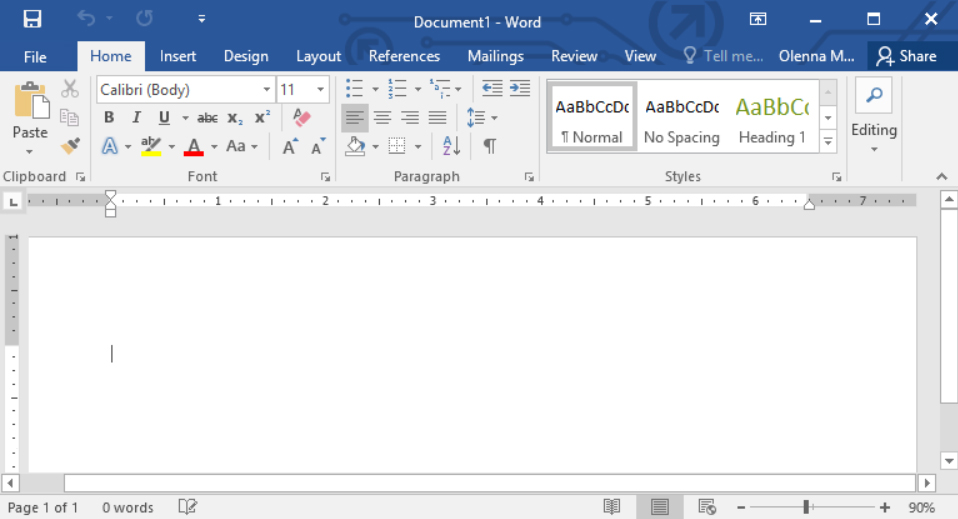
Microsoft Word 2016

Microsoft Word 2016 For Competitive Examination

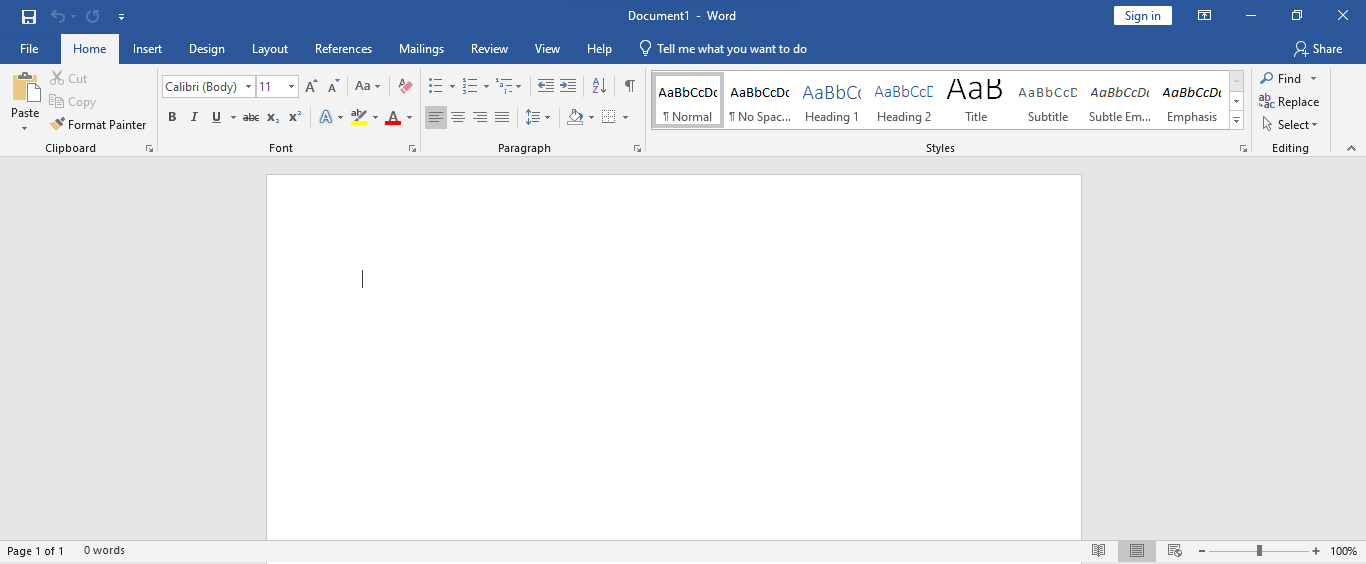
Microsoft Word 2019

Microsoft Word 2019 For Competitive Examination

Microsoft Word 2021

Microsoft Word Office 365 (Microsoft 365 Word)

⭐ 2. Microsoft Word Interface Overview

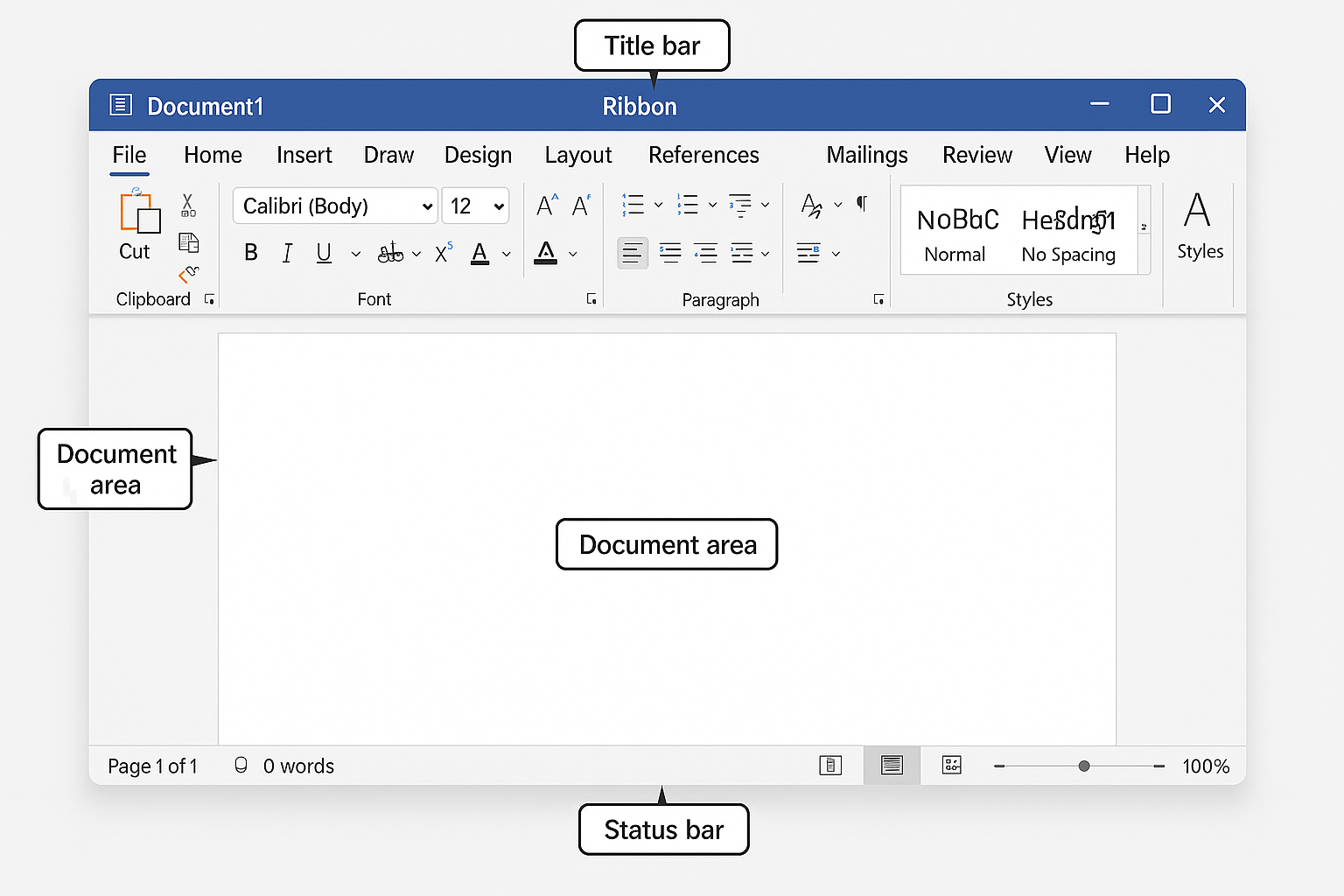
Regardless of the version, Word has several core interface components:

2.1 Title Bar

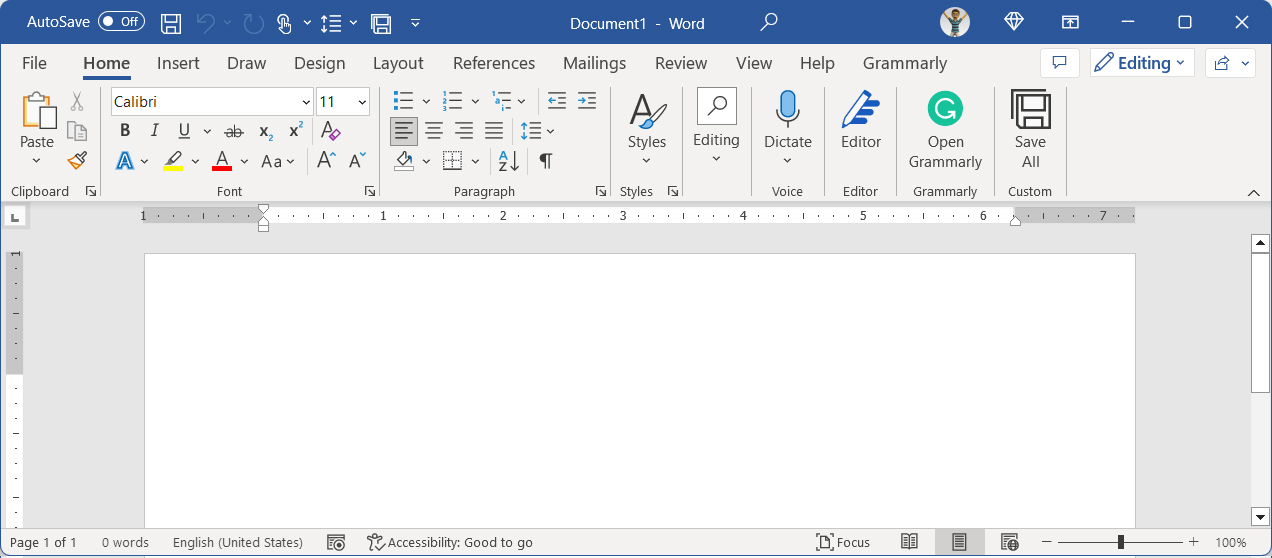
2.2 Quick Access Toolbar (QAT)

MS Word Quick Access Toolbar

2.3 Ribbon Interface

Microsoft Word Ribbon
  • Home

  • Insert

  • Design

  • Layout

  • References

  • Mailings

  • Review

  • View

  • Help

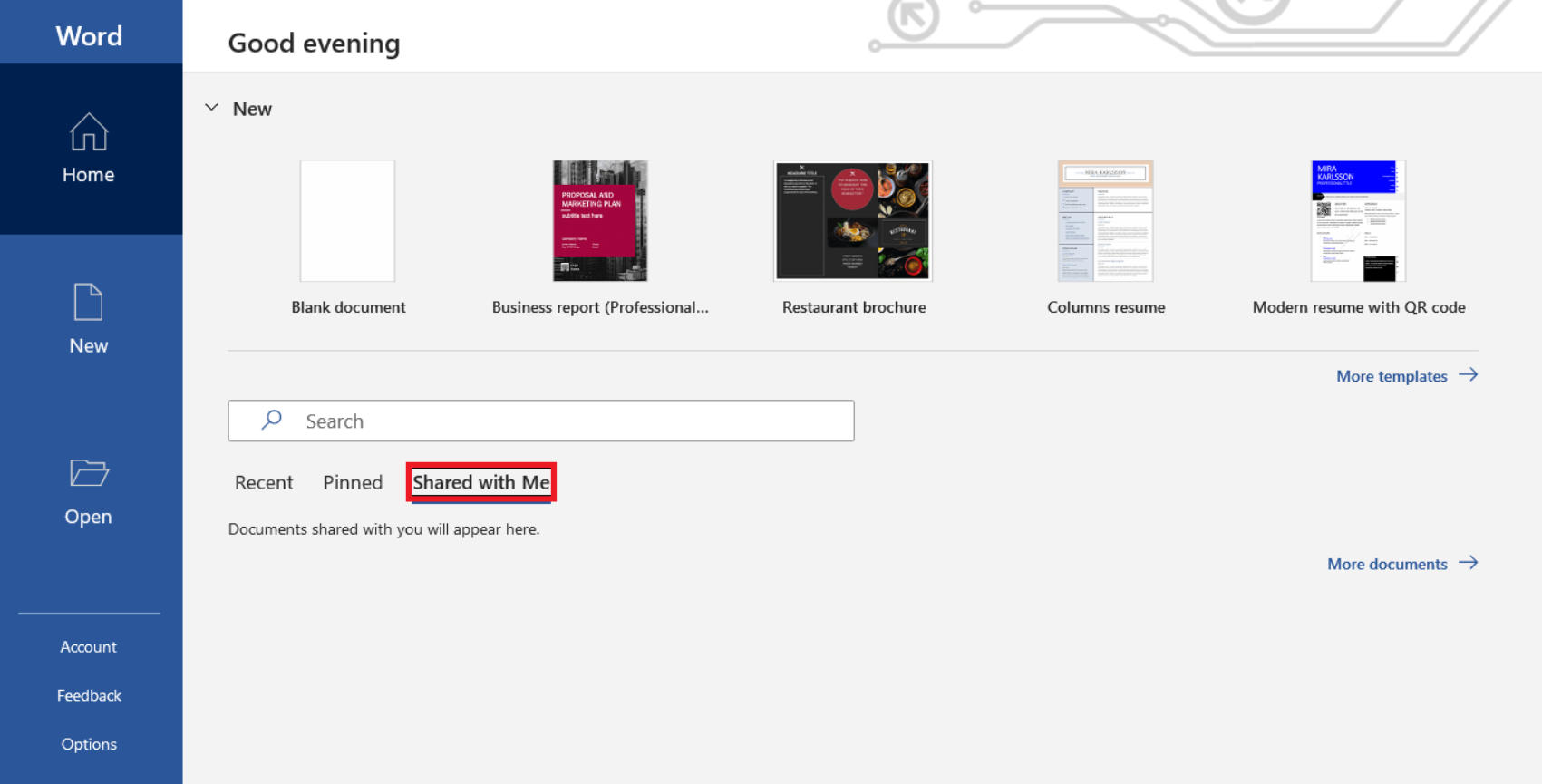
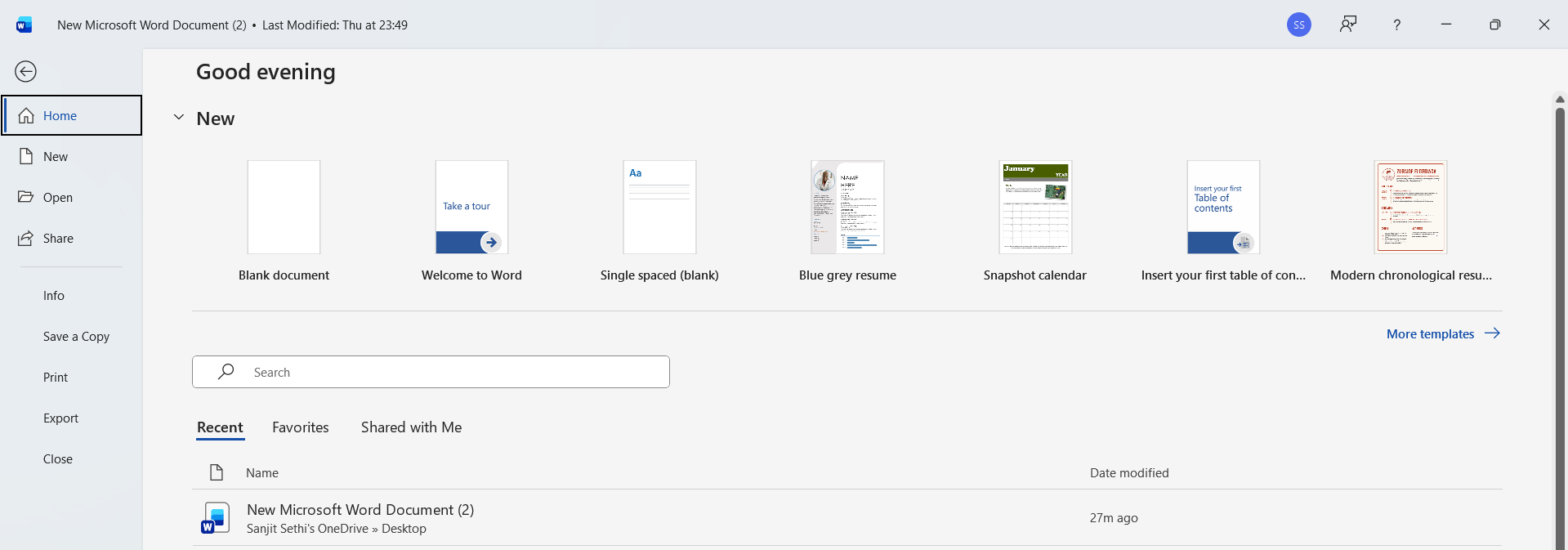
2.4 Backstage View (File Tab)

MS Word Back Stage View
  • Open

  • Save, Save As

  • Print

  • Share

  • Export

  • Options

  • Account

2.5 Document Workspace

2.6 Status Bar

Microsoft Word Status Bar
  • Page number

  • Word count

  • Language

  • Spell-check status

  • Zoom slider

  • View buttons

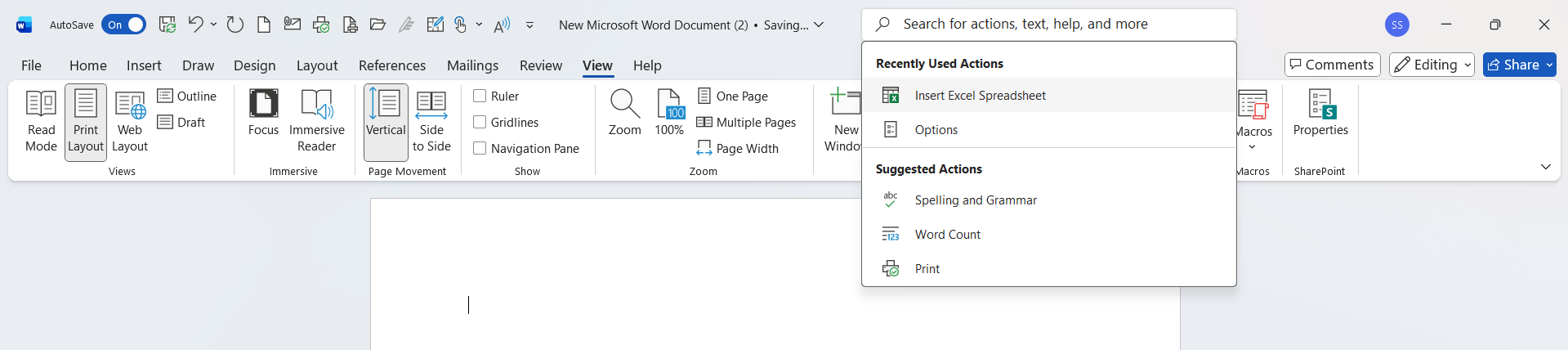
2.7 Tell Me Search Box

2.8 Style & Theme Differences Across Versions

MCQ's For Exam

Q.1. Which version of Word introduced the “Tell Me” feature?

  1. Word 2013
  2. Word 2016
  3. Word 2019
  4. Word 2021

2) Word 2016

📝Explanation: Tell Me” was introduced in Word 2016 for quick command searching.

Q.2. Which Word version provides monthly feature updates?

  1. Word 2019
  2. Word 2021
  3. Office 365
  4. Word 2016

3) Office 365

📝 Description: Office 365 (Microsoft 365) is cloud-based and updated monthly.

Q.3. Which interface element displays Undo/Redo and Save?

  1. Ribbon
  2. Status Bar
  3. Quick Access Toolbar
  4. Backstage View

3) Quick Access Toolbar

📝 Description: Quick Access Toolbar holds quick-access commands.

Q.4. What does the Title Bar show?

  1. Fonts and styles
  2. File name and window controls
  3. Page layout options
  4. Document views

2) File name and window controls

📝 Description: The title bar displays the current file name and window actions.

Q.5. Which tab contains paragraph alignment tools?

  1. Insert
  2. Review
  3. Home
  4. View

3) Home

📝 Description:Home tab contains font, paragraph, and style tools.

Q.6. Which version added SVG and 3D model support?

  1. Word 2016
  2. Word 2019
  3. Word 2010
  4. Word 2021

2) Word 2019

📝 Description: Word 2019 introduced advanced graphics support.

Q.7. Which view is located in the Status Bar?

  1. Read Mode
  2. Mail Merge
  3. Smart Lookup
  4. Clipboard

1) Read Mode

📝 Description: Status bar contains Read Mode, Print Layout, and Web Layout buttons.

Q.8. What is Backstage View accessed through?

  1. Home tab
  2. File tab
  3. Right-click menu
  4. Insert tab

2) File tab

📝 Description: Backstage View opens when clicking the File tab.

Q.9. Where can you find Print options in Microsoft Office Word?

  1. Insert tab
  2. File → Print
  3. Review tab
  4. Layout tab

2) File → Print

📝 Description: You can find Print options in "File Menu" in  Microsoft Office Word?

Q.10. Office 365’s AutoSave only works when files are stored in:

  1. Local disk
  2. USB
  3. OneDrive/SharePoint
  4. Google Drive

3) OneDrive/SharePoint

📝 Description: AutoSave requires cloud storage through Microsoft.

Q.11. Which version introduced real-time co-authoring?

  1. Word 2016 (limited)
  2. Word 2019
  3. Word 2021
  4. Office 365

4) Office 365

📝 Description: Office 365 offers full real-time editing.

Q.12. The Ribbon is divided into:

  1. Pages
  2. Groups
  3. Panels
  4. Blocks

2) Groups

📝 Description: Each Ribbon tab contains groups of related commands.

Q.13. The central blank page area of Microsoft Office Word is known as:

  1. Status Bar
  2. Workspace
  3. Backstage
  4. Clipboard

2) Workspace

📝 Description: The central blank page area of Microsoft Office Word is known as "Workspace". Where you can write, edit, insert content like, images, audio, video, etc....

Q.14. What does the Zoom slider control?

  1. Font size
  2. Document magnification
  3. Page margins
  4. Style settings

2) Document magnification

📝 Description: The Zoom slider (located in the Status Bar) adjusts how large or small the document appears on your screen—without changing actual page size.

Q.15. Word 2021 introduced which UI update?

  1. Flat icons
  2. Ribbon removal
  3. Rounded corners
  4. Classic toolbar

3) Rounded corners

📝 Description: Word 2021 updated the interface using Microsoft’s Fluent Design, including rounded window corners and softer iconography.

Q.16. What does the “Tell Me” box do?

  1. Adds comments
  2. Searches commands
  3. Translates text
  4. Inserts media

2) Searches commands

📝 Description: The “Tell Me” (or "Search") box helps users quickly find commands by typing what they want to do—without navigating tabs.

Q.17. Which UI view helps manage accounts and settings?

  1. Backstage
  2. Ribbon
  3. QAT
  4. Home tab

1) Backstage

📝 Description: Backstage View (File tab) contains options like Save, Print, Account management, and Word Options.

Q.18. Which version is the most feature-rich and constantly updated?

  1. Word 2016
  2. Word 2019
  3. Word 2021
  4. Office 365

4) Office 365

📝 Description: Office 365 (Microsoft 365 Word) receives continuous updates, new features, and improvements every month.

Q.19. The Status Bar displays:

  1. Font size
  2. Word count & page numbers
  3. Themes
  4. File path

2) Word count & page numbers

📝 Description: The Status Bar shows real-time information such as page count, word count, language, proofing status, and zoom level.

Q.20. Which version primarily supports AI-based Editor features?

  1. Word 2013
  2. Word 2016
  3. Office 365
  4. Word 2021

3) Office 365

📝 Description: Microsoft 365 Word includes AI-powered tools like Editor, advanced grammar suggestions, clarity scoring, and style improvements.

Sharing is caring:

Facebook
X
Pinterest
Digg
VK
Telegram
WhatsApp
Email
Print

Contact For Assistance

Give Your Suggestion

Microsoft Office Word - A Complete Course With 1500+ MCQ's

DOWNLOAD NOW
error: Content is protected !!

IMPORTANT NOTICE

We are MindSet Competitive Education Team/ Family. We are currently uploading our course contents continuously to complete and to lunch the website for you all as soon as possible. But we are continuously update course contents/topics from START, so you can stat your Competitive Preparation Journey from start to end step by step.
Anybody Interested To Join Our Courses(Free For All) and get everyday updates on courses/topics/Current affairs.